
How to Install a C++ Compiler and Set Up Your Editor
Install a C++ toolchain on Windows, macOS or Linux, configure your editor, and verify a C++20 build with a repeatable smoke test.
What you will learn
- Separate an editor, compiler, linker, library and debugger.
- Choose one toolchain for your operating system.
- Check compiler discovery and the requested language mode.
- Build and run a small program from a known folder.
- Record enough evidence to reproduce the setup.
What a working C++ setup must prove
A successful installation is not the same as a usable development environment. The installer may finish while your terminal still cannot find the compiler, an editor may highlight code without building it, and a Run button may launch an older executable. Establish a small contract: you can name the compiler, compile the source you just saved, launch the resulting program, and explain its output. Those four checks make later failures much easier to classify.
Start with one folder and one source file. Do not install several competing toolchains to solve an unexplained error. Mixing terminals, compilers, library versions and executable paths creates more uncertainty than it removes. If your computer is managed by a school or employer, follow its installation rules rather than trying to bypass restrictions. The browser examples remain available for practice while you arrange an approved local environment.
The course uses C++20 explicitly. That is a language mode, not a promise that every C++20 library facility exists on every compiler. Our first smoke test uses long-established stream output; later lessons call out additional support requirements. Write down the version you actually have, rather than copying a version number from a tutorial and treating it as your machine's state.
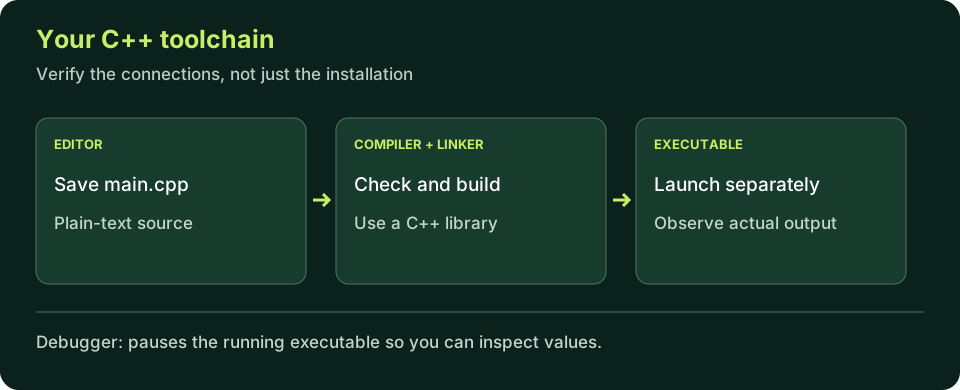
Choose one route for your operating system
On Windows, a straightforward native route is Microsoft's C++ tools. Use the official Visual Studio installer or Build Tools installer and select Desktop development with C++. Keep the C++ toolset and Windows SDK components needed by that workload. Open its Developer Command Prompt for the command examples below. VS Code is a separate editor; installing it or its C/C++ extension does not supply MSVC.
On macOS, Apple's command-line developer tools provide the usual starting point. Run xcode-select --install if the tools are absent, then verify clang++ --version after installation. If they are already present, the installer may say so; that is not a reason to reinstall repeatedly. On Linux, use your distribution's supported compiler packages. The apt commands below are specifically for Debian or Ubuntu, not universal Linux instructions.
GCC inside WSL is another valid Windows route, but it is a Linux environment with Linux paths and binaries. Do not build in WSL and then assume the output is a native Windows .exe. Pick one environment for this lesson and keep the editor, terminal and runtime pointed at it. A later migration is easier once you understand which part of the workflow each tool performs.
Install or verify the selected toolchain
These commands run on your computer, not inside this page. Choose only your operating system's block; review any installation prompt before proceeding.
macOS Terminal:
xcode-select --install
clang++ --version

Debian / Ubuntu terminal:
sudo apt update
sudo apt install build-essential gdb
g++ --version

Windows Developer Command Prompt:
cl
where cl
Create a source file, not a disguised text file
Create a folder named cpp-start in a location you can write to. Open that exact folder in your editor and create main.cpp as a plain-text file. Some file managers hide extensions; verify that the filename is not main.cpp.txt. A compiler uses the actual filename and content, not the icon or syntax-coloring label displayed by an editor. Avoid a cloud-synced folder if file locking or delayed synchronization is already causing trouble.
Open an integrated terminal in the folder, or navigate there from an external terminal. Check the location using pwd on macOS/Linux or cd without arguments in the Windows command prompt, then list files with ls or dir. If main.cpp is not in that listing, fix the working directory before changing your code. Quote paths containing spaces. This habit prevents a large category of 'file not found' errors that have nothing to do with C++.
If using VS Code, install the Microsoft C/C++ extension for editing assistance and configure it to the same compiler you verified in the terminal. IntelliSense settings describe how the editor interprets your code; build tasks determine how the executable is produced. Those settings can disagree. Verify the terminal build first, then reproduce the same compiler, options and output path in the editor's task instead of trusting a default Run button.
Save the file before every build and use ordinary straight quotes in source literals. Text copied through a rich-text document can acquire typographic quote characters that look similar but are not C++ string delimiters. When comparing a terminal build with editor diagnostics, check the saved file on disk rather than assuming an unsaved buffer is the compiler's input. Keep generated executables separate from source names so an output option cannot accidentally overwrite a source file.
Smoke-test program
Predict the greeting, then run the browser version. Save this same source as main.cpp for the real toolchain check.
Predict the output, edit the source, then select Run code.
Compare with the starter's expected output
Hello, C++!
After editing inputs, calculate a new prediction; this reference describes only the starter.
Build and launch main.cpp
Use the matching installed compiler. Run only after a successful build; a failed rebuild may leave an old executable in place.
GCC, Linux:
g++ -std=c++20 -Wall -Wextra -Wpedantic main.cpp -o hello
./hello

Clang, macOS:
clang++ -std=c++20 -Wall -Wextra -Wpedantic main.cpp -o hello
./hello

MSVC, Developer Command Prompt:
cl /std:c++20 /EHsc /W4 main.cpp /Fe:hello.exe
hello.exe

If launching an existing Windows binary in PowerShell:
.\hello.exe
Diagnose the environment before editing the program
'Command not found' or 'not recognized' means the shell cannot discover the requested tool. Check the terminal type and installation before modifying main.cpp. With MSVC, reopen the Developer Command Prompt so its environment is configured. On macOS/Linux, command -v clang++ or command -v g++ shows which executable is being selected. More than one installed compiler can make the same command choose a different version than the editor uses.
A missing header such as iostream suggests an incomplete toolchain or incorrect include configuration. Do not download individual standard headers from random websites. A source filename error points to the directory or spelling. A successful build followed by a launch failure points to the executable path, target environment or permissions. Read the earliest meaningful error and identify which stage produced it; later messages may simply be consequences.
If the program runs but shows old wording, add a unique marker to the greeting, save, rebuild, and launch the explicitly named output. Observe the build's success before running. This is more useful than repeatedly reopening the editor. Keep evidence of the source path, compiler path and executable path so you can distinguish a real language problem from launching the wrong artifact.
- Tool discovery fails → verify the shell and installed compiler.
- Source cannot be found → verify the working directory and real filename.
- Header cannot be found → inspect the toolchain, not just editor coloring.
- Output is stale → save, rebuild successfully, then launch the named binary.
Keep a reproducible setup record
Your notes should include the operating system, terminal type, compiler version, build command, source location and exact observed output. Record actual observations, not a copied 'success' transcript. A beginner who can reproduce a tiny build independently has a stronger foundation than someone with a sophisticated editor configuration they cannot explain. The next lesson uses that foundation to read every part of a complete program.
Independent lab
Create a setup receipt that another learner could follow on the same operating system. Build a program with a unique marker so you can rule out a stale binary.
Acceptance checklist
- Record your real compiler version and terminal type.
- Save the program as main.cpp and build in C++20 mode.
- Run the named output and capture the exact greeting.
- Change ready to verified, rebuild, and capture the changed output.
- Explain one environment failure you encountered, or describe how you would diagnose a missing compiler.
Need a hint?
- A browser result proves the lesson example, not your local installation.
- Change the source marker and confirm the build succeeded before launching.
- Keep one compiler command in your receipt; do not mix commands from different platforms.
Write and run your lab
Build your own solution before revealing the reference. Use the input field for normal, boundary and invalid cases; this runner executes your program but does not grade it.
Predict the output, edit the source, then select Run code.
Your lab evidence and notes
Record predictions, actual output, commands and the cause of each repair. Code is plain text: this scratchpad does not execute or grade C++.
Loading local notes…
Review your acceptance checklist and quiz explanations before marking this lesson complete. This is self-review, not a grade or certification.
Reveal the explained lab solution
Reference lab solution
Compare the reference with your own reasoning. Running this solution does not grade or complete the lesson.
Predict the output, edit the source, then select Run code.
Expected output
Toolchain: verified
This source supplies a distinctive marker; the receipt still needs your own version and local command evidence.
A rebuild that changes ready to verified demonstrates that the executable came from the edited source. It does not certify support for every C++20 feature.
If installation is unavailable, retain the written receipt plan and return to the local check later. Do not mark a browser-only run as a verified toolchain.
Review before moving on
Explain the lesson's objectives in your own words, compare your lab evidence with the acceptance checklist, and keep the first failing case alongside your repair. Completing a page is not proof that every C++ feature or input is supported.
- Separate an editor, compiler, linker, library and debugger.
- Choose one toolchain for your operating system.
- Check compiler discovery and the requested language mode.
- Build and run a small program from a known folder.
- Record enough evidence to reproduce the setup.
References and further reading
Original examples and exercises accompany these primary references. Tool-specific diagnostics and support depend on your installed version.