How to Install Git and Configure GitHub
Install Git on Windows, macOS, or Linux, configure your identity and default branch, connect securely to GitHub, and push your first repository without guessing.

Install a current Git release, then set the name and email that should appear on your commits. Choose main as the default initial branch. To connect GitHub, use HTTPS with a credential manager for the shortest setup or SSH for a durable key-based workflow. Finish by creating or cloning a repository, making one commit, and pushing it to origin.
Understand Git, GitHub, and the four places your work moves
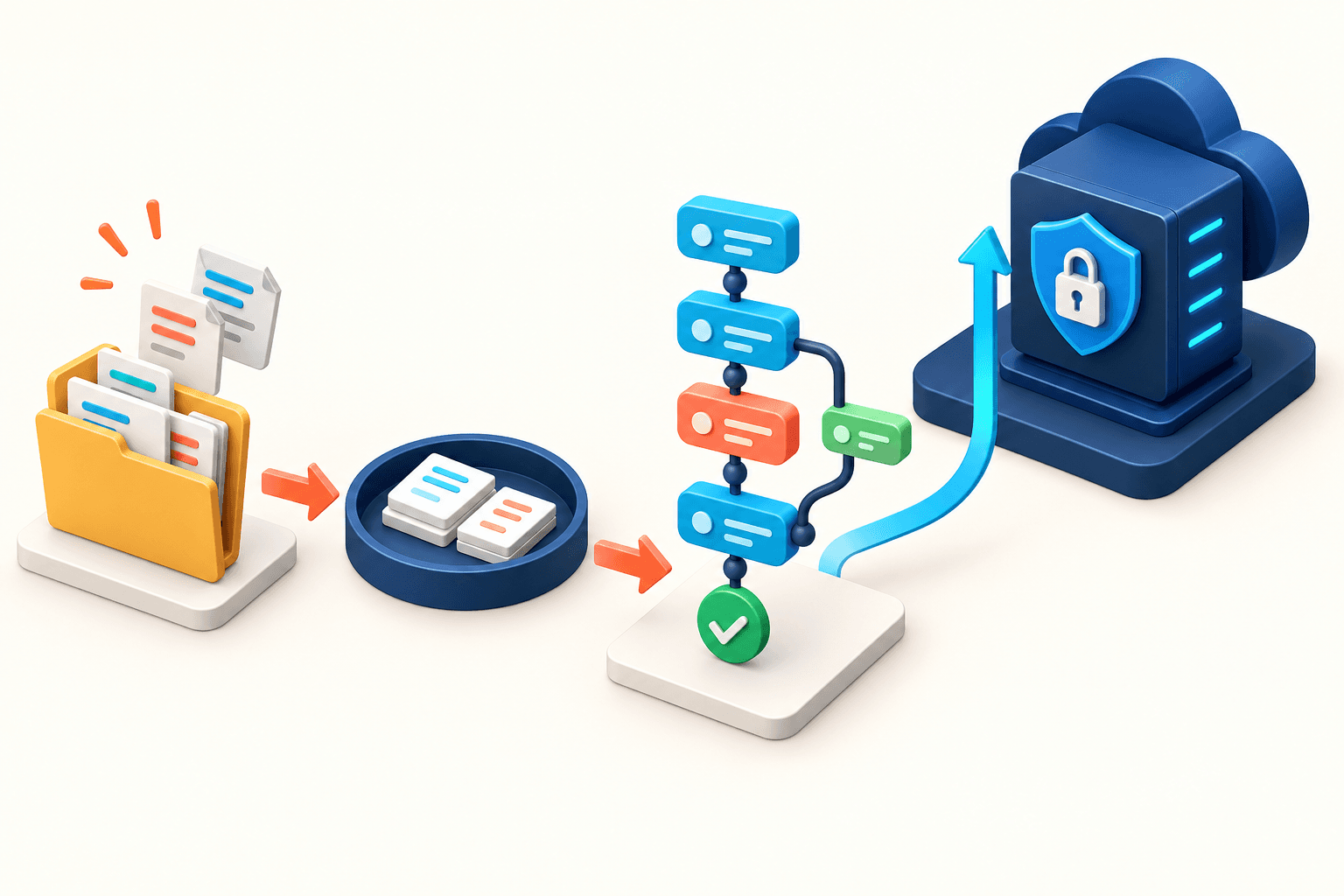
Git and GitHub solve related but different problems. Git is the version-control program on your computer. It creates commits and branches without needing an internet connection. GitHub hosts remote Git repositories and adds collaboration features such as pull requests, reviews, issues, and automation.
| Place | What it contains | Command that moves work forward |
|---|---|---|
| Working tree | Files you are editing right now. | git add |
| Staging area | The exact changes selected for the next commit. | git commit |
| Local repository | Commits and branches stored in the hidden .git directory. | git push |
| GitHub remote | A hosted copy that authorized collaborators can fetch and update. | Pull request or git pull |
Install Git on Windows, macOS, or Linux
- 01
Download Git for Windows
Use the official Windows download from git-scm.com. It includes Git, Git Bash, and Git Credential Manager for secure HTTPS authentication.
- 02
Keep the sensible installer defaults
Choose your preferred editor when asked. For PATH, the recommended option that exposes Git to the command line and third-party software works for most developers. Keep bundled OpenSSH unless your organization documents another client.
- 03
Open a fresh terminal
Close existing terminals and editor windows after installation. Reopen PowerShell, Command Prompt, Git Bash, or your editor terminal before verifying Git.
Official Windows download
git --version
where.exe git
git config --list --show-originConfigure your commit identity and defaults
Git records an author name and email inside every commit. These values do not sign you in to GitHub; GitHub uses them to associate a pushed commit with an account. Use the identity you intend to publish in repository history.
git config --global user.name "Your Name"
git config --global user.email "you@example.com"
git config --global init.defaultBranch maingit config --global --list
git config --list --show-origin
git config --get user.name
git config --get user.email
git config --get init.defaultBranch| Scope | Use it for | Example |
|---|---|---|
| --global | Your normal identity and defaults across repositories for this user account. | git config --global user.name "Your Name" |
| --local | A different identity or rule for the repository in the current folder. | git config --local user.email "work@example.com" |
| --system | Machine-wide policy for every user; normally managed by an administrator. | Avoid changing it unless you manage the computer. |
Choose HTTPS or SSH for GitHub
| Method | Best fit | How authentication works |
|---|---|---|
| HTTPS | Most beginners, managed networks, and computers already using Git Credential Manager or GitHub CLI. | A browser sign-in, credential manager, GitHub CLI, or personal access token supplies credentials. Your account password is not accepted for Git operations. |
| SSH | Developers who want a durable key-based terminal workflow or regularly use several repositories. | A private key stays on the computer; the matching public key is added to GitHub. |
Option A: Configure GitHub over HTTPS
HTTPS is the shortest setup for many developers. Git for Windows includes Git Credential Manager; other platforms can use a compatible credential helper or GitHub CLI. GitHub CLI can authenticate through the browser and configure Git to use the resulting credentials.
- 01
Install GitHub CLI only if you want its workflow
The gh command is separate from Git. Install it from the official GitHub CLI instructions, or keep your operating system's supported credential helper.
- 02
Authenticate to GitHub
Run gh auth login, choose GitHub.com and HTTPS, then follow the browser flow. Review the requested permissions before authorizing.
- 03
Verify the account
Run gh auth status. For plain Git, the first authenticated clone, fetch, or push may open a credential-manager sign-in instead.
gh auth login
gh auth status

# Inspect the repository URL later
git remote -v
HTTPS authentication references
Option B: Configure GitHub with an SSH key
- 01
Check for an existing key
List the .ssh directory before generating anything. A managed or older computer may already have keys with documented owners and purposes.
- 02
Generate a modern key pair
Use Ed25519 when your environment supports it. Replace the sample email with the address associated with your GitHub account and choose a strong passphrase.
- 03
Load the private key into the agent
Start or use your operating system's SSH agent, then add the private key. Windows, macOS, and Linux agent setup differs, so follow GitHub's platform tab when the generic command is not enough.
- 04
Add only the public key to GitHub
Copy id_ed25519.pub, then open GitHub Settings > SSH and GPG keys > New SSH key. Give it a device-specific title and paste the public key.
- 05
Test the connection
Run ssh -T git@github.com, verify GitHub's host fingerprint against the official documentation on first connection, and confirm the success message names your account.
ls -al ~/.ssh
ssh-keygen -t ed25519 -C "you@example.com"
eval "$(ssh-agent -s)"
ssh-add ~/.ssh/id_ed25519
cat ~/.ssh/id_ed25519.pub
ssh -T git@github.comOfficial SSH setup
Create a local repository and push it to GitHub
For an existing local project, create a new empty GitHub repository without initializing a README, license, or .gitignore. That avoids an unrelated remote commit before your first push. Replace the example owner and repository URL below.
mkdir hello-git
cd hello-git
printf "# Hello Git\n" > README.md
git init
git add README.md
git status
git commit -m "Create project README"
git log --onelinegit remote add origin https://github.com/OWNER/REPOSITORY.git
git remote -v
git push -u origin mainThe first push is complete when
- git status reports a clean working tree after the commit.
- git remote -v shows the GitHub repository you intended to use.
- git push finishes without an authentication or non-fast-forward error.
- The main branch and README appear on the correct GitHub repository page.
- git branch -vv shows main tracking origin/main.
Clone a repository and use the everyday workflow
If the GitHub repository already contains work, clone it instead of running git init. Cloning creates the folder, downloads the history, adds origin, and checks out the default branch.
git clone https://github.com/OWNER/REPOSITORY.git
cd REPOSITORY
git remote -v
git statusgit switch -c docs/improve-readme
# Edit files
git status
git diff
git add README.md
git diff --staged
git commit -m "Improve setup instructions"
git push -u origin docs/improve-readme| Command | What it does | When to use it |
|---|---|---|
| git fetch | Downloads remote branches and commits without changing your working branch. | Inspect remote work before integrating it. |
| git pull | Fetches and then integrates the selected upstream branch. | Update a clean branch when you understand the integration policy. |
| git push | Uploads local commits to a remote branch. | Publish reviewed commits; it does not upload uncommitted edits. |
| git switch -c | Creates and checks out a new branch. | Start isolated feature or documentation work. |
Add a .gitignore and keep secrets out of history
A .gitignore file prevents matching untracked files from being added. It does not remove a file that Git already tracks, and it cannot erase a secret from earlier commits.
.env
.env.*
!.env.example
node_modules/
dist/
build/
.DS_Store
Thumbs.db
*.loggit status --ignored
git check-ignore -v .envIgnore-file resources
Troubleshoot common Git and GitHub errors
| Problem | What it usually means | What to check |
|---|---|---|
| git is not recognized | The terminal has an old PATH or Git was not installed for this shell. | Restart terminals and editors, then run where.exe git or command -v git. |
| Author identity unknown | user.name or user.email is missing in the effective configuration. | Set the intended global or repository-local identity and inspect --show-origin. |
| Repository not found | The URL is wrong, the repository is private, or the authenticated account lacks access. | Open the repository in GitHub, copy its Code URL again, and verify the signed-in account. |
| Permission denied (publickey) | GitHub did not accept a key offered by the SSH client. | Check ssh -vT git@github.com, the loaded agent keys, the public key in GitHub, and which ssh executable Git uses. |
| Authentication failed over HTTPS | Cached credentials are expired, for another account, or insufficiently authorized. | Use the credential manager or gh auth status; do not retry with the account password. |
| Remote origin already exists | The repository already has a remote named origin. | Inspect git remote -v, then use git remote set-url origin URL if the existing URL is wrong. |
| src refspec main does not match any | No commit exists yet, or the current branch has another name. | Run git status and git branch --show-current; create a commit before pushing. |
| Push rejected: non-fast-forward | GitHub contains commits your branch does not have. | Fetch first, inspect the remote history, then merge or rebase according to the project workflow. Do not force-push blindly. |
git --version
git status
git branch -vv
git remote -v
git config --list --show-origin

# Add this only for SSH connection debugging
ssh -vT git@github.comFinal Git and GitHub setup checklist
You are ready to collaborate when
- git --version reports a recent Git 2.x release from the expected path.
- Your commit name and email are deliberate and visible in git config.
- New repositories default to main unless a project specifies another convention.
- Exactly one tested GitHub authentication route—HTTPS or SSH—works.
- You can clone an existing repository and push a new branch.
- You understand the difference between working files, staged changes, local commits, and the GitHub remote.
- Secrets, private keys, dependencies, and generated output are excluded appropriately.
Keep learning from primary references
Frequently asked questions
What is the difference between Git and GitHub?
Git is the local version-control system that creates commits and branches. GitHub is a hosting and collaboration service for Git repositories. You can use Git without GitHub, and GitHub repositories are accessed through Git-compatible tools.
Do I need a GitHub account to use Git?
No. Git works locally and can synchronize with many hosting services or private servers. You need a GitHub account only for repositories and collaboration features hosted on GitHub.
Should I use HTTPS or SSH with GitHub?
HTTPS with a credential manager or GitHub CLI is usually the shortest beginner setup. SSH is excellent for a durable key-based terminal workflow. Both are secure when configured correctly; use the one your team supports.
Can I use my GitHub password with git push?
No. GitHub does not accept account passwords for Git operations. Use a supported credential manager, GitHub CLI, an SSH key, or a deliberately scoped personal access token when required.
Which email should I set in Git?
Use an email verified on your GitHub account if you want commits attributed to that account. Use GitHub's provided no-reply address when you do not want a personal email published in commit metadata.
Is an SSH public key safe to share with GitHub?
Yes. The file ending in .pub is designed to be shared. The private key without .pub must remain secret and should be protected with a passphrase.
Why does GitHub not show my commit after git commit?
git commit updates only the local repository. Check git remote -v, then push the branch. Confirm that the push succeeded and that you are viewing the same repository and branch on GitHub.
How do I change an existing repository from HTTPS to SSH?
Copy the SSH URL from the repository's Code menu, then run git remote set-url origin followed by that URL. Verify the result with git remote -v and test SSH first.
Should I commit package dependencies or build output?
Usually commit dependency manifests and lockfiles, not downloaded dependency folders. Build-output policy varies by project. Follow the repository's existing .gitignore and deployment process.
What should I do if I committed a secret?
Revoke or rotate the credential immediately, then follow GitHub's sensitive-data removal guidance. A later deletion commit does not make the earlier secret safe.
